
How to Track AI Overview Traffic in Search Console and GA4 (and What You Can't See)

Since August 31, 2026, Google Search Console has offered every site a report that counts how often its pages were shown in AI Overviews and AI Mode. That is real progress. But the report counts impressions only. It doesn’t tell you how many people clicked, and it doesn’t tell you which searches triggered the AI answer.
So “how do I track AI Overview traffic?” has a two-part answer. You can measure visibility directly. You can only estimate clicks, by combining a few free tools and being honest about what they can’t separate.
This guide walks through that setup step by step, using Google’s own documentation, and ends with a monthly checklist you can copy.
What Google reports, and what it doesn’t
Before the steps, it helps to know where AI Overview data actually lives.
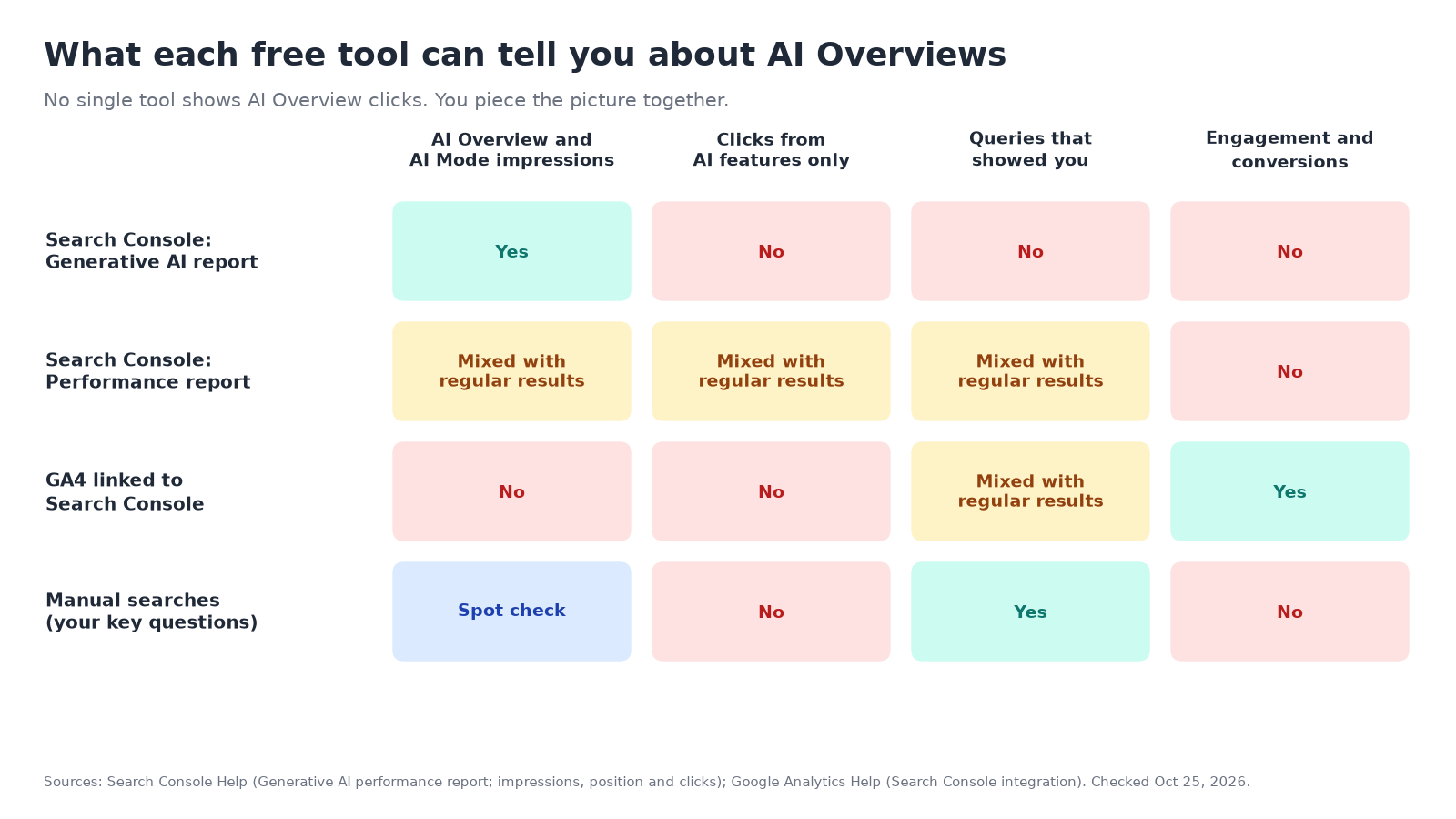
Google’s AI features documentation says sites that appear in AI Overviews and AI Mode “are included in the overall search traffic in Search Console,” reported in the Performance report under the “Web” search type. In other words, AI clicks are already in your numbers. They’re just mixed in with regular results.
Search Console’s help page on impressions, position and clicks adds the counting rules:
- A click on a link to your site inside an AI Overview or AI Mode counts as a regular click.
- An AI Overview takes up one position on the results page, and every link inside it gets that same position.
- A follow-up question in AI Mode counts as a new query.
- Search Labs experiments aren’t included.
Then, in June 2026, Google introduced the Generative AI performance report, a separate view of impressions from AI features. Google finished rolling it out to all sites worldwide on August 31, 2026.
| Question you want answered | Where to look | How precise it is |
|---|---|---|
| How often were my pages shown in AI Overviews or AI Mode? | Search Console, Generative AI report | Direct count of impressions |
| Which of my pages appear in AI features? | Generative AI report, Pages tab | Direct |
| Which countries and devices? | Generative AI report, Countries and Devices tabs | Direct |
| How many clicks came from AI Overviews? | Not reported anywhere | Estimate only |
| Which searches showed my page in an AI Overview? | Not reported; check by hand | Spot checks |
| Is AI Overviews or AI Mode bigger for me? | Not split in the report | Not available |
| What did those visitors do on my site? | GA4, by landing page | Mixed with all Google organic visits |
Step 1: Make sure you’re eligible to be counted
The Generative AI report won’t show up for every site. Google’s help page for the report says that usually means the site “hasn’t received enough impressions in generative AI features,” or that it has been excluded with the new Search generative AI control.
Two quick checks:
- In Search Console, open Settings, then Search generative AI, and confirm the property is set to include your site. Excluding it means, in Google’s words, “You won’t receive any traffic or impressions from these features.” We explained why most businesses should leave it on in our post on Google’s AI Overviews opt-out switch.
- Make sure the pages you care about are indexed and can show a snippet. Google says that’s the only technical requirement to appear as a supporting link in AI Overviews or AI Mode. A
nosnippettag or a robots.txt block takes a page out of the running.
Step 2: Read the Generative AI report
Open the Generative AI performance report for your property. By default it shows total impressions over time. Four tabs group the data:
- Pages: which URLs were linked from an AI feature. This is the most useful tab for a small site.
- Countries: where the searches came from. Handy if you serve one city but get visibility from elsewhere.
- Devices: desktop, tablet or mobile.
- Dates: days, weeks or months, in Pacific Time.
Two details trip people up:
- The chart and the table can disagree. The chart counts by property (two of your links in one AI Overview count once), while the Pages tab counts by page. Google says this is expected.
- The newest data is preliminary and shows as a dotted line. Don’t react to the last day or two.
Use the export button to download the Pages table. You’ll need it in the next step.
Step 3: Estimate how much of each page’s search exposure is AI
Because AI impressions are part of the “Web” totals in the regular Performance report, you can compare the two for the same page and the same dates.
- In the regular Performance report, set the search type to Web and pick a date range, for example the last 28 days.
- Open the Pages tab and export it.
- Export the Generative AI report’s Pages tab for the same 28 days.
- For each page, divide AI impressions by total Web impressions.
Here’s an example with made-up numbers, just to show the math:
| Page (example) | Web impressions | AI feature impressions | AI share of impressions | Web clicks |
|---|---|---|---|---|
| /emergency-plumbing | 4,000 | 1,600 | 40% | 120 |
| /water-heater-repair | 2,500 | 250 | 10% | 95 |
| /about | 600 | 0 | 0% | 30 |
This doesn’t tell you how many of the 120 clicks came from the AI Overview. It tells you which pages are most exposed to AI answers. Those are the pages where a change in AI Overviews is most likely to move your clicks, up or down.
Step 4: Watch clicks on your most AI-exposed pages over time
Since no report separates AI clicks, the practical method is a before-and-after comparison on the pages from Step 3.
- In the Performance report, filter to one high-AI-share page.
- Use Compare to put two periods side by side, such as the 28 days before and after a known change.
- Look at clicks and click-through rate, not just impressions.
Google gives you good dates to test. On October 15, 2026, Google said it was adding more inline links to AI Overviews and AI Mode, showing them higher in the answer, and adding sections that point to official sources. Search Engine Land noted that Search Console still gives no click breakdown for AI answers, so a landing-page comparison is the closest you can get. If your high-AI-share pages gained clicks after mid-October while low-AI-share pages didn’t, that’s a reasonable signal the new links helped. It isn’t proof, because seasonality and ranking changes move clicks too.
Keep expectations realistic. Pew Research Center tracked the browsing of 900 U.S. adults in March 2025 and found that people clicked a link inside a Google AI summary in just 1% of visits to pages that had one. That study predates Google’s October changes, so treat it as a baseline rather than today’s rate.
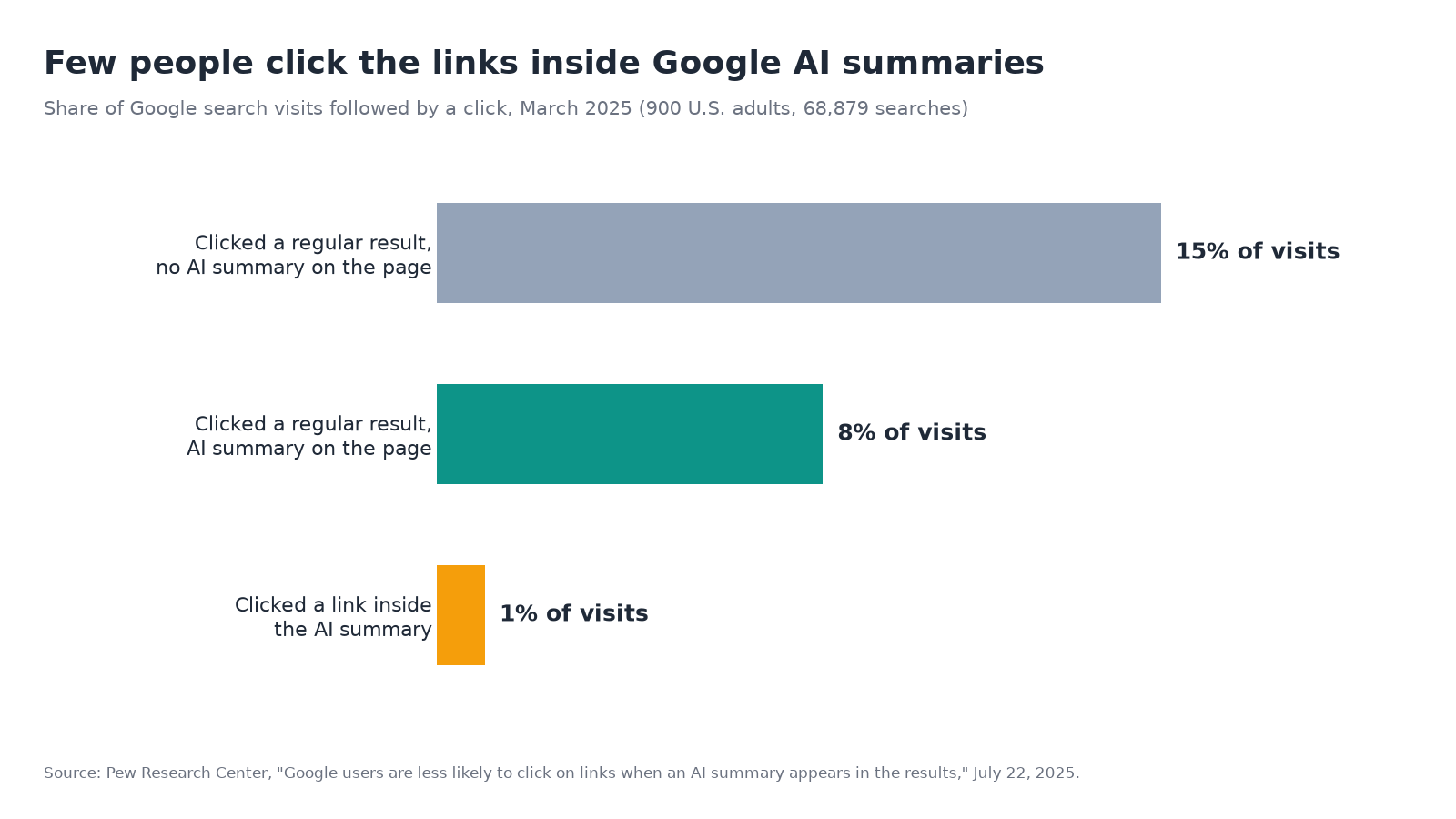
Low click rates are why impressions matter. An AI Overview can name your business to someone who calls you later without clicking. We made that case in why small AI search traffic still matters for local businesses.
Step 5: Connect Search Console to GA4 to see what those visitors do
Search Console stops at the click. To see whether visitors from Google stayed, called or booked, link it to Google Analytics 4.
Google’s Search Console integration guide covers the setup:
- In GA4, go to Admin, then Product links, then Search Console Links, and click Link.
- Choose your Search Console property, then the web data stream for your site, and submit.
- The new reports are unpublished by default. Find the Search Console collection under Library and publish it.
You’ll get two reports: Google Organic Search Queries and Google Organic Search Traffic. The second one pairs landing pages with Search Console and Analytics metrics, which is exactly what you want for your high-AI-share pages. A few limits from the same guide: data arrives about 48 hours late, only 16 months are kept, and Search Console metrics only combine with the Landing page, Device and Country dimensions.
Google’s own claim is worth testing here. Its AI features page says that clicks from results pages with AI Overviews “are higher quality (meaning, users are more likely to spend more time on the site).” Compare engagement time and key events on your most AI-exposed landing pages against your others. If Google is right for your site, those pages should hold attention better.
One thing GA4 can’t do: Google doesn’t document a separate source for AI Overview clicks, so they land in Google organic search with everything else. And if an AI Overview link carries a text fragment (the #:~:text= part that highlights a passage), browsers strip it during page load so scripts can’t read it. It isn’t a reliable way to tag AI visits.
Step 6: Check the questions by hand
Neither the Generative AI report nor GA4 tells you which questions put your business in an AI Overview. For that, you have to look.
- Write down 10 to 20 questions a customer would actually type, without your business name: “best emergency plumber near me,” “how much does a water heater replacement cost in Seattle.”
- Search each one in a private browser window and note whether an AI Overview appears, whether your site is linked, and which competitors are named.
- Repeat monthly on the same questions, so you’re comparing like with like.
AI answers vary by location, device and day, so a single search is a snapshot, not a ranking. That’s also why one check can mislead: run the same list on a schedule.
This is the gap Beket AI’s free audit fills. It runs 25 unbranded prompts across 3 AI engines and shows whether you’re mentioned and who is named instead. Pro, at $49/month, re-audits daily starting at 50 prompts across 3 engines, so you can see the trend rather than one snapshot.
Step 7: Don’t stop at Google
AI Overviews are one engine. Two others give you free data or clear signals:
- Copilot: Bing Webmaster Tools reports which AI grounding queries cite your site. Our guide to the Bing AI Performance report walks through it.
- ChatGPT, Perplexity and Gemini: Some of their visits show up as referrals, and many land in “Direct.” We covered how to find them in your AI traffic is hiding in Direct.
Your monthly AI Overview tracking checklist
- Confirm Settings > Search generative AI still includes your site.
- Export the Generative AI report’s Pages tab for the last 28 days.
- Export the regular Performance report’s Pages tab (Web) for the same dates.
- Update each key page’s AI share of impressions.
- Compare clicks and CTR on high-AI-share pages against the previous period.
- In GA4, check engagement and key events for those landing pages.
- Run your fixed list of unbranded questions by hand, or review your latest audit.
- Note any Google announcements that month so you can explain changes.
A spreadsheet with one row per page and one column per month is enough. After three months, you’ll know which pages AI Overviews rely on, whether those pages still earn clicks, and which questions you’re missing entirely.
Sources checked October 25, 2026. Google’s reports and policies change, so confirm details in the linked documentation before making decisions.
Related posts
llms.txt vs robots.txt vs Schema Markup: What Each One Does for AI Search
llms.txt, robots.txt and schema markup compared: what each file does, which AI systems read it, what Google says, and which one to fix first.
What Percentage of Google Searches Have AI Overviews? The 80% Headline vs. Local Search
New studies put AI Overviews on 77% to 88% of tracked US searches. Local searches tell a different story: 4% for "near me," 75% when a job is named.
How ChatGPT Search Works: How It Finds, Indexes, and Cites Websites
How ChatGPT search decides to search, rewrites queries, pulls from OpenAI's own index and partner providers, and what the Cloudflare pilot changed.